
За PractiPrint
PractiPrint получава разписка или друг подготвен документ от Practifas или съвместима уеб система и го показва като изображение за преглед.
Документът може да бъде прегледан, споделен, запазен или изпратен директно към съвместим Bluetooth термопринтер. Поддържат се 58 mm, 80 mm и A4 формати за печат.
Как се използва
- Включете Bluetooth на Android телефона или таблета.
- Включете съвместимия Bluetooth термопринтер.
- Отворете документа в Practifas или друга система, интегрирана с iPrint.
- Изберете необходимия формат за печат: 58 mm, 80 mm или A4.
- PractiPrint ще се отвори и ще покаже подготвеното изображение за преглед.
- Изберете Печатай, за да изпратите документа към съвместимия термопринтер.
80 mm печат на разписки
Режимът 80 mm е предназначен за съвместими Bluetooth термопринтери за по-широки разписки и документи. Печатът използва ESC/POS-style raw print data по същия начин като 58 mm режима.
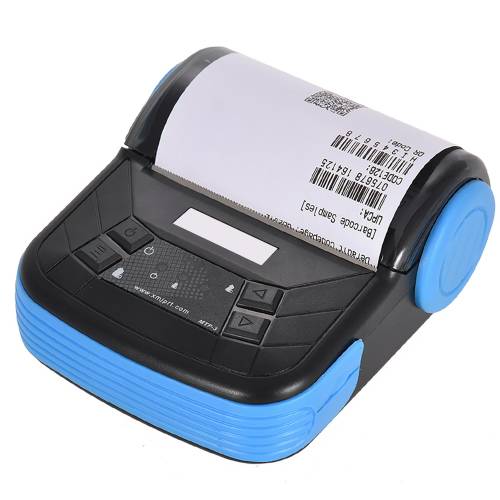
- Тестван модел: MPT-3
- Формат: 80 mm терморазписка
- Връзка: Bluetooth
- Печат: ESC/POS / raw data printing
Съвместими принтери
Директният печат изисква съвместим Bluetooth термопринтер, който позволява изпращане на raw print data.
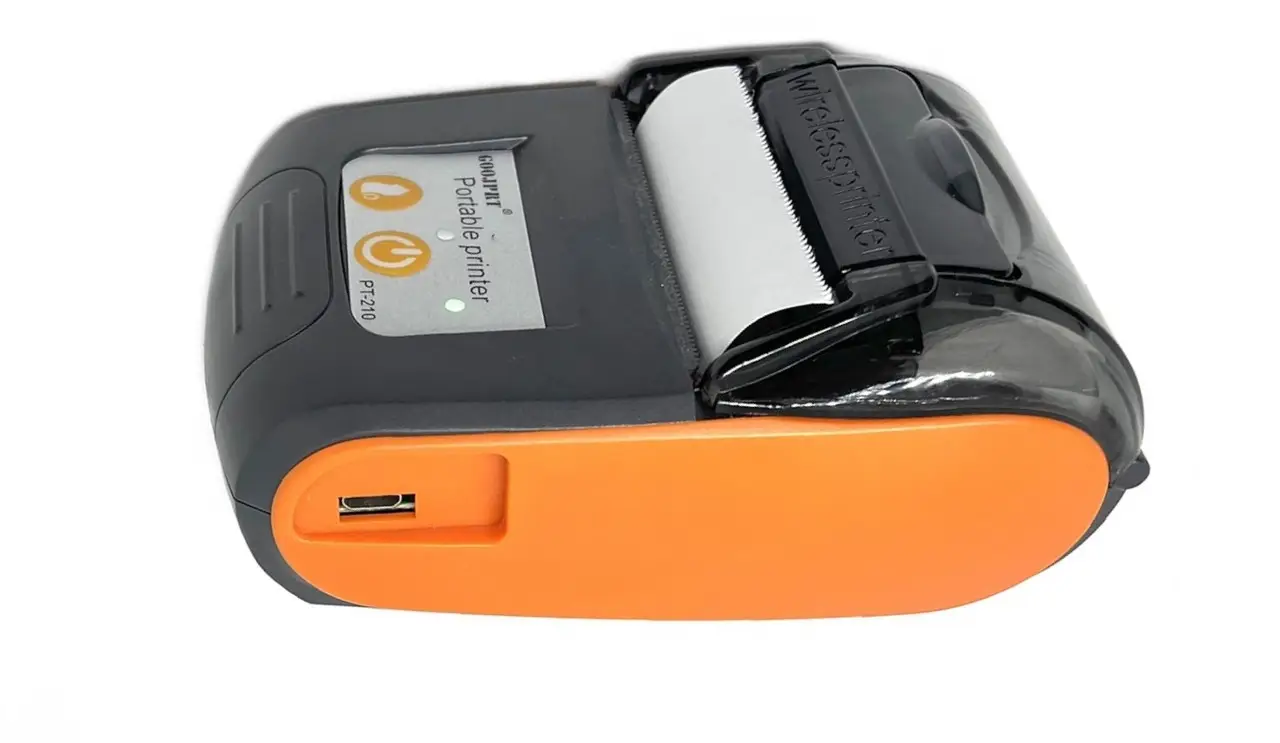
- Тестван модел: GOOJPRT PT-210
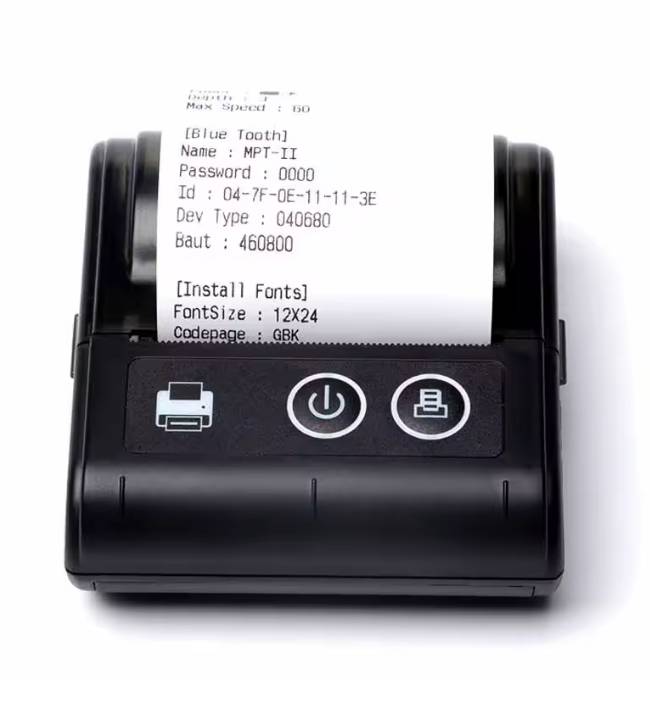
- Тестван модел: MPT-II
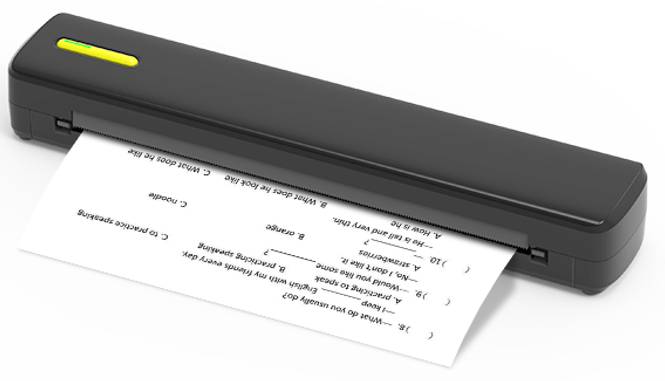
- Тествана серия: Xiamen C80x Series
- Тестван модел: MPT-3 (80 mm)
- Връзка: Bluetooth
- Печат: ESC/POS / raw data printing
Сходният външен вид или търговско наименование не гарантират еднакъв Bluetooth интерфейс, firmware или набор от команди. Поради това не можем да гарантираме работа с всеки модел термопринтер.
Ако принтерът не се свързва
- Проверете дали Bluetooth е включен и PractiPrint има необходимото разрешение да го използва.
- Проверете дали принтерът е включен и се намира близо до телефона или таблета.
- Изключете принтера от други телефони, таблети или приложения.
- Изключете и включете отново принтера.
- Затворете и стартирайте отново PractiPrint.
- Проверете дали моделът позволява директно изпращане на печатни данни през Bluetooth.
Поверителност
PractiPrint използва Bluetooth единствено за откриване, свързване и изпращане на печатни данни към съвместим принтер.
Получените изображения се използват само за преглед, споделяне, запазване или печат.
Приложението не изисква регистрация и не продава лични данни. Временните файлове се използват единствено за изпълнение на заявеното от потребителя действие.
Контакт
При проблем изпратете модела на принтера, версията на Android и кратко описание на поведението.
info@imarov.comAbout PractiPrint
PractiPrint receives a prepared receipt or document from Practifas or another compatible web system and displays it as a print-ready image preview.
The document can be previewed, shared, saved, or sent directly to a compatible Bluetooth thermal printer. PractiPrint supports 58 mm, 80 mm, and A4 print formats.
How to use it
- Enable Bluetooth on your Android phone or tablet.
- Turn on a compatible Bluetooth thermal printer.
- Open the prepared document in Practifas or another website integrated with iPrint.
- Select the required print format: 58 mm, 80 mm, or A4.
- PractiPrint opens and displays the generated print-ready image.
- Select Print to send the document directly to the compatible thermal printer.
58 mm receipt printing
The 58 mm mode is designed for compatible compact Bluetooth thermal receipt printers using ESC/POS-style raw printing commands.
- Tested printer: GOOJPRT PT-210
- Connection: Bluetooth
- Print mode: 58 mm thermal receipt
- Protocol: ESC/POS / raw data printing
80 mm receipt printing
The 80 mm mode is designed for compatible Bluetooth thermal printers used for wider receipts and documents. It uses ESC/POS-style raw printing commands, just like the 58 mm mode.
- Tested printer: MPT-3
- Connection: Bluetooth
- Print mode: 80 mm thermal receipt
- Protocol: ESC/POS / raw data printing
A4 thermal printing
PractiPrint supports compatible portable thermal printers for larger document formats. The website prepares the document, PractiPrint opens automatically, and the complete print-ready image is displayed before printing.
- Connection: Bluetooth
- Tested series: Xiamen C80x Series
Printer command sets may vary between manufacturers and firmware versions. Compatibility therefore depends on the printer's Bluetooth interface, firmware and supported printing commands.
Compatible printers
PractiPrint supports compatible Bluetooth thermal printers that accept the required ESC/POS-style or raw printing commands.
A similar appearance, model name or product description does not guarantee compatibility. Bluetooth implementation, firmware, paper handling and supported command sets can differ between printer models.
For this reason, compatibility with every thermal printer model cannot be guaranteed.
If the printer does not connect
- Make sure Bluetooth is enabled and PractiPrint has permission to use it.
- Make sure the printer is powered on and within Bluetooth range.
- Disconnect the printer from other phones, tablets or applications.
- Turn the printer off and on again.
- Close and reopen PractiPrint.
- Confirm that the printer supports direct writable print data through Bluetooth.
If the printer is detected but printing does not start, the printer may use a different Bluetooth interface, firmware protocol or printing command set.
Privacy
PractiPrint uses Bluetooth only to discover, connect to, and send print data to a compatible printer.
Received images are used only for previewing, sharing, saving or printing.
PractiPrint does not require a user account, subscription or purchase to use its printing workflow, and the app does not sell personal data.
Temporary print files are used only to complete the action requested by the user.
Contact
When requesting support, please include the printer model, the Android version, and a short description of the issue.
info@imarov.comPractiPrint Documentation
PractiPrint is an Android Print Service for compatible Bluetooth thermal printers and supports 58 mm, 80 mm, and A4 printing workflows.
1. Initial printer setup
Turn on Bluetooth and start PractiPrint.
Allow the required Bluetooth / Nearby devices permissions when requested by Android.
Scan for nearby printers and select the printer you want to use. The scanner filters nearby Bluetooth devices so that only devices recognized as printers are shown. PractiPrint saves the selected printer for future print jobs.
2. Printing
Open the document, web page, image or other printable content in an Android application and use the standard Print command.
Select PractiPrint as the print service. The saved thermal printer will be available for printing.
If the saved printer is powered on and within Bluetooth range, PractiPrint connects to it and sends the print job automatically.
There is no need to manually open PractiPrint before every print.
3. Changing the printer
To use another printer, open PractiPrint and scan for nearby printers again.
Select the new printer. It replaces the previously saved printer and will be used for future print jobs.
4. Printer availability
The saved printer must be powered on and within Bluetooth range when a print job is sent.
If the printer is switched off or unavailable, printing cannot start until the printer becomes available.
5. Troubleshooting
- Make sure Bluetooth is enabled on the Android device.
- Make sure PractiPrint has permission to use Bluetooth / Nearby devices.
- Make sure the saved printer is powered on and within range.
- Make sure the printer is not being used by another phone, tablet or application.
- If you want to use another printer, open PractiPrint and select the new printer.
- If printing does not start, restart the printer and select it again in PractiPrint.
Printer compatibility
PractiPrint is designed for compatible Bluetooth thermal printers.
Bluetooth implementation, firmware, supported commands and paper handling may differ between manufacturers and printer models. Compatibility with every thermal printer cannot therefore be guaranteed.
Support
When requesting support, please include the printer model, Android version and a short description of the issue.
info@imarov.comЧесто задавани въпроси
1. PractiPrint безплатен ли е?
Да. PractiPrint е напълно безплатен, без абонаменти, платени функции или задължителна регистрация.
2. Какви принтери поддържа PractiPrint?
Съвместими Bluetooth Low Energy (BLE) термопринтери с формати 58 мм, 80 мм и A4. Принтерът трябва да поддържа необходимите BLE услуги, характеристики за запис и подходящи команди за печат, например ESC/POS или съвместим raw протокол. Не всеки Bluetooth принтер е съвместим.
3. Необходим ли е Wi-Fi или интернет?
Не за самия печат. Връзката между Android устройството и принтера е директна чрез Bluetooth Low Energy. Интернет е необходим само когато документът или страницата, която искате да отпечатате, се зарежда от онлайн източник.
4. Как се активира PractiPrint в Android?
Инсталирайте PractiPrint, отворете настройките за печат на Android и активирайте услугата PractiPrint. При първото използване изберете съвместим BLE принтер. Имената на менютата може да се различават според производителя и версията на Android.
5. От кои приложения мога да печатам?
От приложения, които поддържат системната функция „Печат“ на Android - например браузъри, PDF четци, офис приложения и други. Изберете „Печат“, след което PractiPrint от списъка с налични принтери или услуги.
6. Мога ли да печатам PDF, изображения и уебстраници?
Да, когато съответното приложение предлага системната функция „Печат“. Android подготвя документа, а PractiPrint го изпраща към съвместимия BLE принтер. Не е необходим iPrint API за PDF файлове и изображения.
7. Как да печатам от собствен уебсайт?
Използвайте стандартния JavaScript
метод window.print()
или бутона за печат в браузъра.
В системния диалог изберете
PractiPrint и подходящия формат:
58 мм, 80 мм или A4.
PHP и iPrint API не са необходими.
8. Запомня ли PractiPrint последния принтер и формата?
PractiPrint запомня избрания BLE принтер и последния използван формат. При следващо отпечатване проверете настройките в системния диалог на Android, тъй като автоматичното възстановяване на тези настройки може да зависи от устройството и версията на операционната система.
9. Може ли няколко устройства да използват един принтер?
Да, последователно. След приключване на печата услугата PractiPrint може автоматично да освободи Bluetooth връзката, за да може друго устройство да използва принтера. При зает принтер приложението може да изчака и да опита повторно свързване.
Важно: За да работи последователният печат, основното приложение PractiPrint трябва да бъде затворено, като услугата за печат остане активирана.
10. Трябва ли PractiPrint да остане постоянно отворен?
Не. След като услугата за печат (Android Print Service) е активирана, можете да изпращате задачи директно през системното меню за печат на Android, без да отваряте основния екран на PractiPrint.
Препоръчително е основното приложение да бъде затворено, като услугата за печат остане активна. Така след приключване на печата Bluetooth връзката с принтера се освобождава автоматично.
Ако основното приложение остане отворено и поддържа връзката с принтера, тя няма да бъде прекъсната след печат. Това ще попречи на друго устройство да използва същия принтер.
11. Защо PractiPrint не се появява в менюто за печат?
Проверете дали услугата PractiPrint е активирана в настройките за печат на Android. Уверете се също, че приложението, от което искате да печатате, поддържа системната функция „Печат“. Ако такава функция липсва, то не може директно да извика PractiPrint като Print Service.
12. Защо принтерът не се открива или не печата?
Проверете дали принтерът е включен и зареден, дали Bluetooth е активен и дали PractiPrint има необходимите разрешения. Уверете се, че принтерът не е свързан към друго устройство.
За съвместимост принтерът трябва да поддържа Bluetooth Low Energy, подходящи BLE услуги и характеристики за запис, както и съвместим печатен протокол, например ESC/POS. Поддръжката само на Bluetooth Classic не е достатъчна.
Frequently Asked Questions
1. Is PractiPrint free?
Yes. PractiPrint is completely free, with no subscriptions, paid features, or mandatory registration.
2. Which printers does PractiPrint support?
Compatible Bluetooth Low Energy (BLE) thermal printers supporting 58 mm, 80 mm, and A4 formats. Printers must provide the required BLE services, writable characteristics, and compatible printing commands such as ESC/POS or a supported raw printing protocol. Not every Bluetooth printer is compatible.
3. Is Wi-Fi or internet access required?
Not for printing itself. The Android device communicates directly with the printer through Bluetooth Low Energy. Internet access is only required when the document or webpage is loaded from an online source.
4. How do I enable PractiPrint on Android?
Install PractiPrint, open the Android printing settings, and enable the PractiPrint print service. Select a compatible BLE printer during initial setup. Menu names may vary depending on the device manufacturer and Android version.
5. Which applications can I print from?
Any application that supports Android's system Print function, including compatible web browsers, PDF readers, office applications, and others. Choose Print, then select PractiPrint from the available printers or print services.
6. Can I print PDF files, images, and webpages?
Yes, provided the application offers Android's system Print function. Android prepares the document, and PractiPrint sends it to the compatible BLE printer. No iPrint API integration is needed for PDF files or images.
7. How can I print from my own website?
Use the standard JavaScript method
window.print()
or the browser's Print option.
Select PractiPrint and the appropriate
format - 58 mm, 80 mm, or A4 -
in Android's system print dialog.
PHP and iPrint API are not required.
8. Does PractiPrint remember the last printer and paper format?
PractiPrint remembers the selected BLE printer and the last-used paper format. Check the options in Android's system print dialog when sending a new job, as restoring the previous settings may depend on the device and operating system version.
9. Can multiple devices share one printer?
Yes, sequentially. After printing, the PractiPrint service can automatically release its Bluetooth connection so another device can use the printer. When the printer is temporarily busy, the app may wait and retry connecting.
Important: To enable sequential printing, keep the PractiPrint main application closed while its Android Print Service remains enabled.
10. Must PractiPrint remain open all the time?
No. Once Android Print Service is enabled, you can submit jobs directly through Android's system print dialog without opening the main PractiPrint screen.
It is recommended to keep the main application closed while leaving the print service enabled. This allows the Bluetooth connection to be released automatically after printing.
If the main application remains open and maintains the printer connection, Bluetooth will not disconnect after printing. This prevents another device from using the same printer.
11. Why doesn't PractiPrint appear in the Print menu?
Make sure the PractiPrint print service is enabled in Android's printing settings. Also verify that the application you are printing from supports Android's system Print function. Apps without this feature cannot directly invoke PractiPrint as a print service.
12. Why can't the printer be found or print?
Check that the printer is powered on and charged, Bluetooth is enabled, and PractiPrint has the required permissions. Make sure the printer is not connected to another device.
The printer must support Bluetooth Low Energy, suitable BLE services and writable characteristics, and a compatible printing protocol such as ESC/POS. Bluetooth Classic support alone is not sufficient.