
BLE печат от уебсайт в 3 стъпки
- Инсталирайте PractiPrint от App Store на iPhone, iPad или Mac с Apple Silicon (M1–M5) и изберете съвместим BLE принтер.
- Добавете iPrint API 2.6 към уебсайта си.
- Оградете съдържанието за печат с необходимия HTML контейнер и добавете бутона за печат.
При натискане на бутона PractiPrint получава документа от сайта, свързва се със запаметения принтер, отпечатва го и освобождава Bluetooth връзката.
За PractiPrint
PractiPrint 2.7 получава разписка или друг подготвен документ от сайт с iPrint интеграция. Поддържа печат на 58 mm, 80 mm и A4.
Документът може да бъде споделен, запазен, отпечатан чрез стандартното меню на Apple или изпратен директно към съвместим BLE термопринтер.
Какво е новото във версия 2.7
Подобрени са филтрите при търсене на Bluetooth устройства, така че списъкът да показва само разпознатите съвместими BLE принтери, вместо други близки устройства.
Интеграцията не се променя: PractiPrint 2.7 продължава да работи със същия iPrint API 2.6. Не е необходим нов API пакет за версия 2.7.
Как се използва
- Включете Bluetooth на iPhone, iPad или Mac с Apple Silicon (M1–M5) и включете BLE термопринтера.
- Отворете документа в сайт с iPrint интеграция.
- Натиснете iPrint 58 mm, iPrint 80 mm или iPrint A4 според принтера.
- PractiPrint се отваря и изтегля изображението от адреса, подаден автоматично от API-то.
- При първо използване изберете съвместим принтер. Приложението запомня избрания принтер.
- При следваща задача PractiPrint се свързва със запаметения принтер и започва печат автоматично. След печат освобождава Bluetooth връзката.
Съвместими принтери
Директният печат изисква BLE термопринтер с ESC/POS съвместимост и поддръжка на raw data printing.
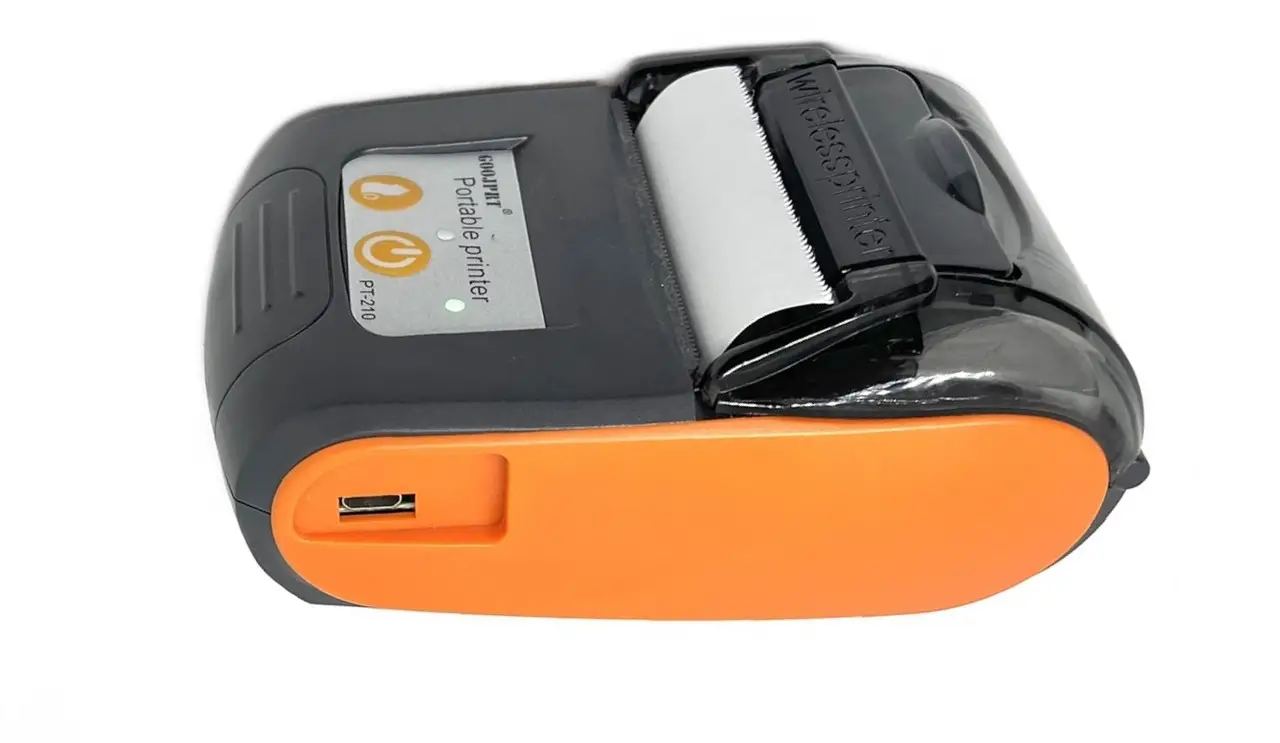
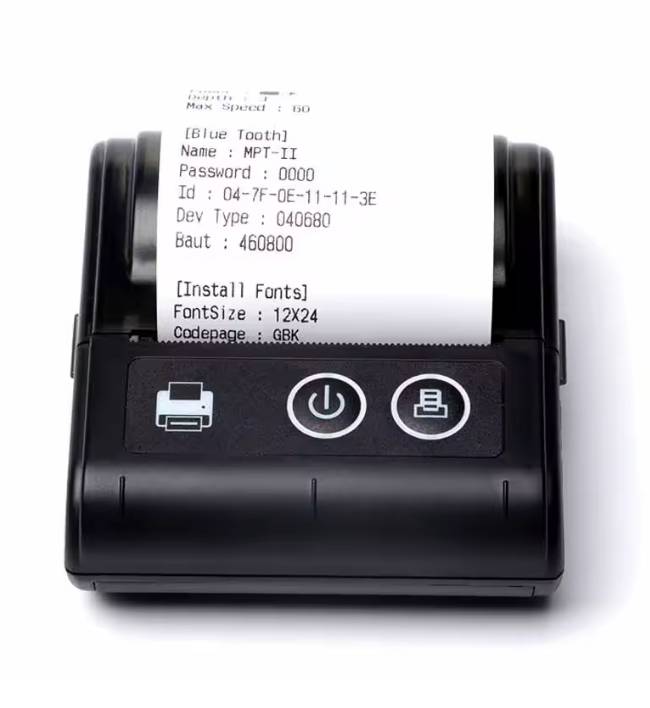
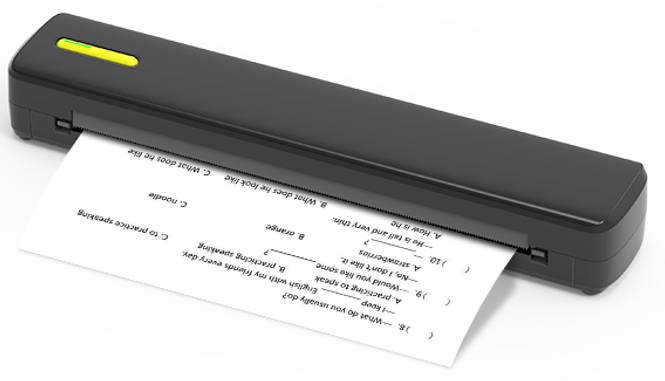
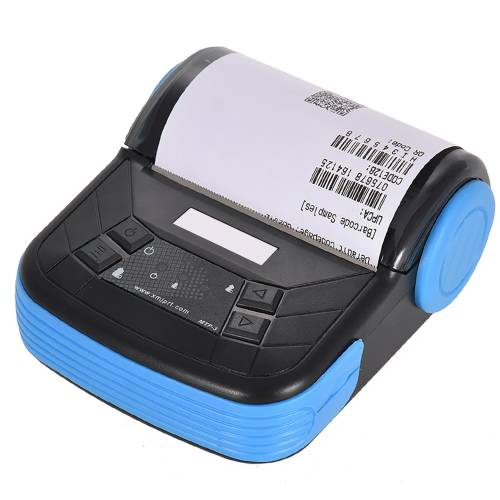
- Тествани модели: GOOJPRT PT-210 (58 mm), MPT-II (58 mm), GOOJPRT MPT-3 (80 mm) и C801 (A4).
- Връзка: Bluetooth Low Energy (BLE)
- Протокол: ESC/POS / raw data printing
Сходният външен вид или търговско наименование не гарантират еднакви BLE услуги и характеристики. Поради различия във firmware и UUID конфигурацията не можем да гарантираме работа с всеки модел.
Ако принтерът не се свързва
- Проверете дали Bluetooth е включен и PractiPrint има разрешение да го използва.
- Изключете принтера от други телефони или приложения.
- Изключете и включете отново принтера.
- Затворете и стартирайте отново PractiPrint.
- Проверете дали принтерът действително поддържа BLE, ESC/POS и raw data printing за iOS.
Поверителност
PractiPrint използва Bluetooth единствено за откриване, свързване и изпращане на печатни данни към съвместим принтер.
Получените изображения се използват за преглед, споделяне или печат. Приложението не изисква регистрация и не продава лични данни. Временните файлове се използват само за изпълнение на заявеното от потребителя действие.
Контакт
При проблем изпратете модел на принтера, версия на iOS/macOS и кратко описание на поведението.
info@imarov.comДокументация за разработчици — iPrint 2.6
iPrint подготвя изображение на вашия уебсайт и изпраща пълния му HTTPS адрес и формата за печат към PractiPrint. Приложението автоматично изтегля файла от съответния сайт. Поддържаните формати са 58 mm, 80 mm и A4.
Изтеглете двата файла и ги качете в корена на сайта, в който ще използвате iPrint.
1. Инсталиране или обновяване на iPrint
- Изтеглете
iprint(v2.6).zipиiprint-install.php. - Качете двата файла в главната директория на сайта, обикновено
public_htmlилиwwwroot. Не разархивирайте и не преименувайте ZIP архива. - Отворете
https://example.com/iprint-install.php, като заменитеexample.comс вашия домейн. - Натиснете Инсталирай iPrint 2.6.
Инсталаторът създава или обновява директорията /iprint/, проверява пакета и дали временните изображения за печат могат да бъдат записвани. Съществуващите изображения се запазват. При успешно приключване инсталаторът се опитва да изтрие ZIP архива и самия себе си. Ако изтриването не е възможно, изпълнете показаните инструкции за ръчно премахване на файловете.
Необходими са PHP 7.2 или по-нова версия, разширението PHP ZIP и права за запис в главната директория на сайта. Преди обновяване направете резервно копие на всички собствени промени в съществуващите iPrint файлове, защото файловете от пакета ще ги заменят.
2. Добавяне на необходимия бутон за печат
Включете API файла за формата, който се използва на страницата:
58 mm
<?php require_once $_SERVER['DOCUMENT_ROOT'] . '/iprint/api_iprint.php'; ?>80 mm
<?php require_once $_SERVER['DOCUMENT_ROOT'] . '/iprint/api_iprint_80.php'; ?>A4
<?php require_once $_SERVER['DOCUMENT_ROOT'] . '/iprint/api_iprint_a4.php'; ?>Поставете съответния require_once в <body> на страницата. Тези пътища работят и ако страницата е в поддиректория на сайта. Ако включите няколко формата, задайте различни CSS позиции на бутоните им, защото бутоните за 80 mm и A4 по подразбиране са на едно и също място.
3. Обозначаване на съдържанието за печат
Оградете документа или секцията за печат в точно един контейнер с клас .receipt-wrap:
<div class="receipt-wrap">
    Съдържание на разписката или документа
</div>
Текущият пакет използва този контейнер за 58 mm, 80 mm и отделното A4 API. За да изключите елемент от изображението, добавете data-html2canvas-ignore="true". Бутоните на iPrint вече са изключени автоматично.
4. Автоматичен адрес на изображението и формат за печат
API генерира PNG изображение и го качва на текущия сайт, след което отваря PractiPrint с пълния му адрес. Не е необходимо да въвеждате адрес на сайт в приложението. Всяка заявка за печат съдържа информация от кой сайт идва.
practiprint://print?url=ENCODED_HTTPS_IMAGE_URL&format=80Адресът на изображението сочи към /iprint/iprint_image.php?job=... на сайта, който е създал документа. Когато създавате deep link ръчно, кодирайте пълния HTTPS адрес на изображението с encodeURIComponent().
format=receiptилиformat=58— печат на разписка 58 mm.format=80— печат на разписка 80 mm.format=a4— печат на A4 документ.return_url— незадължителен кодиран HTTPS адрес, който да се отвори след печат.
Форматът управлява подготовката на изображението за избрания принтер. Той не избира автоматично друг физически принтер. При смяна на принтера използвайте функцията за избор в приложението.
5. Тестване на интеграцията
- Отворете подготвената страница през HTTPS и натиснете съответния бутон iPrint.
- Проверете дали PractiPrint се отваря и получава генерирания документ.
- При първо използване изберете съвместим принтер. Ако има запаметен принтер, печатът започва автоматично, когато връзката е готова.
- Проверете отпечатания документ и дали Bluetooth връзката се освобождава след приключване.
Временни изображения
Изображенията остават в /iprint/iprint_jobs/ на сайта, който ги е създал. Те не се качват на централен сървър на PractiPrint. Всяко временно изображение е достъпно за 15 минути. Изтеклите изображения се премахват при следващо качване или заявка за изображение. Възможността за допълнително автоматично почистване чрез cron е описана в README_BG.txt от пакета.
За съдействие при интеграция или съвместимост с принтери пишете на info@imarov.com.
BLE printing from a website in 3 steps
- Install PractiPrint from the App Store on your iPhone, iPad, or Mac with Apple Silicon (M1–M5) and select a compatible BLE printer.
- Add the iPrint 2.6 API to your website.
- Wrap the printable content in the required HTML container and add the print button.
When the button is pressed, PractiPrint receives the document from the website, connects to the saved printer, prints it, and releases the Bluetooth connection.
About PractiPrint
PractiPrint receives a prepared receipt or document from a website integrated with iPrint and displays it as a print-ready image preview.
PractiPrint 2.7 supports 58 mm receipt printing, 80 mm receipt printing and A4 thermal printing.
The document can be previewed, shared, saved, printed through Apple’s standard system options, or sent directly to a compatible BLE thermal printer.
What's new in version 2.7
Bluetooth device discovery filters have been improved so the list shows only recognized compatible BLE printers rather than unrelated nearby devices.
No integration changes: PractiPrint 2.7 continues to work with the existing iPrint 2.6 API. No separate API package is needed for version 2.7.
How to use it
- Enable Bluetooth on your iPhone, iPad, or Mac with Apple Silicon (M1–M5) and turn on the BLE printer.
- Open the document on a website integrated with iPrint.
- Select iPrint 58 mm, iPrint 80 mm, or iPrint A4 to match your printer.
- PractiPrint opens and downloads the image using the URL supplied automatically by the API.
- On first use, select a compatible printer. PractiPrint remembers your selection.
- For subsequent jobs, the app reconnects to the saved printer and starts printing automatically. It releases the Bluetooth connection after printing.
58/80 mm receipt printing
The 58 mm and 80 mm modes are designed for compatible BLE thermal receipt printers using ESC/POS-style raw printing commands.
- Tested models: GOOJPRT PT-210 (58 mm), GOOJPRT MPT-3 (80 mm), and MPT-II (58 mm).
- Connection: Bluetooth Low Energy (BLE)
- Print mode: 58/80 mm thermal receipt
- Protocol: ESC/POS / raw data printing
A4 thermal printing
PractiPrint 2.7 supports compatible portable A4 thermal printers. A4 documents use the same web-to-app workflow: the website prepares the document, PractiPrint opens automatically, and the complete print-ready image is displayed before printing.
- Print mode: A4 thermal document
- Connection: Bluetooth Low Energy (BLE)
- Tested printer: C801 portable A4 thermal printer
A4 printer command sets may vary between manufacturers and firmware versions. Compatibility therefore depends on the printer’s BLE services, writable characteristics, firmware, and supported printing commands.
Compatible printers
PractiPrint uses open thermal-printing workflows and supports compatible BLE printers that accept the required ESC/POS-style or raw printing commands.
A similar appearance, model name, or product description does not guarantee compatibility. BLE services, UUID characteristics, firmware, paper handling, and supported command sets can differ between printer models.
For this reason, compatibility with every thermal printer model cannot be guaranteed.
If the printer does not connect
- Make sure Bluetooth is enabled and PractiPrint has permission to use it.
- Make sure the printer is powered on and within Bluetooth range.
- Disconnect the printer from other phones, tablets, or applications.
- Turn the printer off and on again.
- Close and reopen PractiPrint.
- Confirm that the printer supports Bluetooth Low Energy and direct writable print data.
If the printer is detected but printing does not start, the printer may use a different BLE service, characteristic, firmware protocol, or printing command set.
Privacy
PractiPrint uses Bluetooth only to discover, connect to, and send print data to a compatible printer.
Received images are used only for previewing, sharing, saving, or printing.
PractiPrint does not require a user account, subscription, or purchase to use its printing workflow, and the app does not sell personal data. Temporary print files are used only to complete the action requested by the user.
Contact
When requesting support, please include the printer model, the iOS, iPadOS, or macOS version, and a short description of the issue.
info@imarov.comDeveloper Documentation — iPrint 2.6
iPrint prepares an image on your website and sends its full HTTPS URL and print format to PractiPrint. The app downloads the file automatically from the correct website. Supported formats are 58 mm, 80 mm, and A4.
Изтеглете двата файла и ги качете в корена на сайта, в който ще използвате iPrint.
1. Install or update iPrint
- Download
iprint(v2.6).zipandiprint-install.php. - Upload both files to your website’s document root, usually
public_htmlorwwwroot. Do not extract or rename the ZIP archive. - Open
https://example.com/iprint-install.phpon your own website. - Click Инсталирай iPrint 2.6 (Install iPrint 2.6).
The installer creates or updates /iprint/, checks the package
and verifies that temporary print images can be saved. Existing print images
are preserved. After success, it attempts to delete the installation ZIP and itself;
if deletion is unavailable, follow the on-screen instructions to remove them manually.
The installer requires PHP 7.2 or later, the PHP ZIP extension, and write access to the website root. Back up any custom edits to the existing iPrint files before updating, because package files will be replaced.
2. Add the required print button
Include the API for the paper format used by your page:
58 mm
<?php require_once $_SERVER['DOCUMENT_ROOT'] . '/iprint/api_iprint.php'; ?>80 mm
<?php require_once $_SERVER['DOCUMENT_ROOT'] . '/iprint/api_iprint_80.php'; ?>A4
<?php require_once $_SERVER['DOCUMENT_ROOT'] . '/iprint/api_iprint_a4.php'; ?>
Place the include inside the page’s <body>.
These paths also work when the page is in a subdirectory of the website.
If you include multiple formats, give their buttons separate CSS positions;
the default 80 mm and A4 buttons use the same position.
3. Mark the printable content
Wrap the document or section to print in exactly one .receipt-wrap container:
<div class="receipt-wrap">
    Your receipt or document content
</div>
The current package uses this container for 58 mm, 80 mm, and the separate A4 API.
To exclude an element from the image, add data-html2canvas-ignore="true".
The iPrint buttons are already excluded.
4. Automatic image URL and print format
The API generates and uploads the PNG on the current website, then opens PractiPrint with the complete image URL. No website address needs to be entered in the app. Each print request identifies its own source website.
practiprint://print?url=ENCODED_HTTPS_IMAGE_URL&format=80
The image URL points to /iprint/iprint_image.php?job=... on the
website that created the document. Encode the complete image URL with
encodeURIComponent() when constructing the deep link manually.
format=receiptorformat=58— 58 mm receipt printing.format=80— 80 mm receipt printing.format=a4— A4 thermal printing.return_url— optional encoded HTTPS address to open after printing.
The format controls image preparation for the selected printer. It does not automatically select a different printer. Use the app’s printer selection when changing physical printers.
5. Test the integration
- Open the prepared page over HTTPS and press the required iPrint button.
- Check that PractiPrint opens and receives the generated document.
- Select a compatible printer on first use. With a saved printer, printing starts automatically when the connection is ready.
- Check the printed document and that the Bluetooth connection is released afterwards.
Temporary images
Images stay in /iprint/iprint_jobs/ on the website that created them;
they are not uploaded to a central PractiPrint image server. Each server copy
is available for 15 minutes. Expired images are removed on subsequent uploads
or image requests. Optional cron cleanup is described in the package’s
README_BG.txt.
For integration or printer compatibility assistance, contact info@imarov.com.
Често задавани въпроси
1. PractiPrint безплатен ли е?
Да. PractiPrint е напълно безплатен, без абонаменти, платени функции или задължителна регистрация.
2. Какви принтери поддържа PractiPrint?
Съвместими Bluetooth Low Energy (BLE) термопринтери с формати 58 мм, 80 мм и A4. Принтерът трябва да поддържа необходимите BLE услуги, характеристики за запис и подходящи команди за печат. Не всеки Bluetooth принтер е съвместим.
3. Необходим ли е Wi-Fi или интернет?
За получаване на съдържание от онлайн уебсайт е необходим достъп до интернет. При локална уебсистема интернет не е необходим, ако приложението има достъп до генерираното изображение. Самата връзка с принтера е директна чрез Bluetooth и не изисква Wi-Fi.
4. Мога ли да печатам от iPhone или iPad?
Да. PractiPrint отпечатва уебсъдържание
от сайтове с интегриран iPrint API.
Текущият API пакет използва PHP,
затова интеграцията се включва
в PHP страница на сървъра.
Самият документ може да съдържа
обикновен HTML, ограден в контейнера
.receipt-wrap.
5. Как се интегрира PractiPrint в уебсайт?
Инсталирайте iPrint API 2.6 на уебсървъра,
включете съответния PHP API файл
и оградете съдържанието за печат
с .receipt-wrap.
iPrint добавя бутона за печат,
подготвя изображението и го подава
към PractiPrint чрез deep link.
Пълните инструкции са в документацията
на тази страница.
6. Може ли няколко устройства да използват един принтер?
Да, последователно. След приключване на печата PractiPrint автоматично освобождава Bluetooth връзката. При временно зает принтер приложението може да изчака и да опита повторно свързване. Едновременен печат от няколко устройства не се поддържа.
7. Трябва ли PractiPrint да остане постоянно отворен?
Не. Натискането на iPrint бутона от уебсайта отваря PractiPrint автоматично. Оставете приложението активно, докато печатът приключи и Bluetooth връзката бъде освободена. След това можете да го затворите или да го оставите във фонов режим.
8. Защо принтерът не се открива или не се свързва?
Проверете дали принтерът е включен и зареден, дали Bluetooth е активен и дали PractiPrint има необходимите разрешения. Принтерът не трябва да е свързан към друго устройство. За съвместимост е необходим BLE интерфейс с подходящи услуги и характеристики за запис, както и поддържан печатен протокол - ESC/POS или съответния raw протокол за конкретния модел. Само наличието на Bluetooth не гарантира съвместимост.
Frequently Asked Questions
1. Is PractiPrint free?
Yes. PractiPrint is completely free, with no subscriptions, paid features, or mandatory registration.
2. Which printers does PractiPrint support?
Compatible Bluetooth Low Energy (BLE) thermal printers supporting 58 mm, 80 mm, and A4 formats. The printer must provide the required BLE services, writable characteristics, and supported printing commands. Not every Bluetooth printer is compatible.
3. Is Wi-Fi or internet access required?
Internet access is required to retrieve content from an online website. A local web system can work without internet access if the generated image is accessible to the app. Printing itself uses a direct Bluetooth connection and does not require Wi-Fi.
4. Can I print from an iPhone or iPad?
Yes. PractiPrint prints web content
from websites integrated with iPrint API.
The current API package uses PHP,
so it must be included in a PHP page
on the server.
The printable document itself can
contain ordinary HTML wrapped
in a .receipt-wrap
container.
5. How do I integrate PractiPrint into a website?
Install iPrint API 2.6 on your web server,
include the appropriate PHP API file,
and wrap the printable content
in .receipt-wrap.
iPrint adds the print button,
prepares the image, and sends it
to PractiPrint through a deep link.
Full instructions are available
in the documentation on this page.
6. Can multiple devices share one printer?
Yes, sequentially. PractiPrint automatically releases the Bluetooth connection after printing. If the printer is temporarily busy, the app can wait and retry connecting. Simultaneous printing from multiple devices is not supported.
7. Must PractiPrint remain open all the time?
No. Pressing an iPrint button on a website automatically opens PractiPrint. Keep the app active until printing is complete and the Bluetooth connection is released. You can then close the app or leave it running in the background.
8. Why can't the printer be found or connected?
Make sure the printer is powered on and charged, Bluetooth is enabled, and PractiPrint has the required permissions. The printer should not be connected to another device. Compatibility requires BLE services with suitable writable characteristics and a supported printing protocol such as ESC/POS or the model-specific raw printing protocol. Bluetooth support alone does not guarantee compatibility.